 Remove Background Noise
How to remove background noise from audio
What kinds of background noise can be reduced under speech, how to record cleaner audio, and how to clean an existing recording.
Updated 2026-11-03 · 3 min read
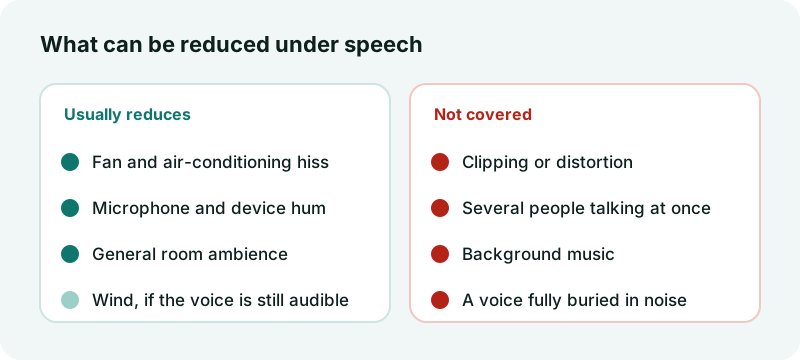
Short answer: steady noise such as fan hiss, air-conditioning, electrical hum and general room noise can usually be reduced under speech. Noise that changes constantly or sounds like speech, such as other people talking or music, is much harder.
Which noise is reducible
- Fan and air-conditioning hiss: usually reduces well.
- Microphone and device hum: usually reduces well.
- General room ambience: often reduces well.
- Clipping or distortion: not repairable.
- Several people talking at once: not covered.
- Background music: not covered.
Record cleaner audio
- Switch off fans, air conditioning and fridges for the take if you can.
- Move the microphone closer to the speaker instead of raising the volume afterwards.
- Avoid hard, empty rooms; soft furnishings cut echo.
- Keep levels below clipping. A quiet clean recording beats a loud distorted one.
How the cleanup works
Clean an existing recording
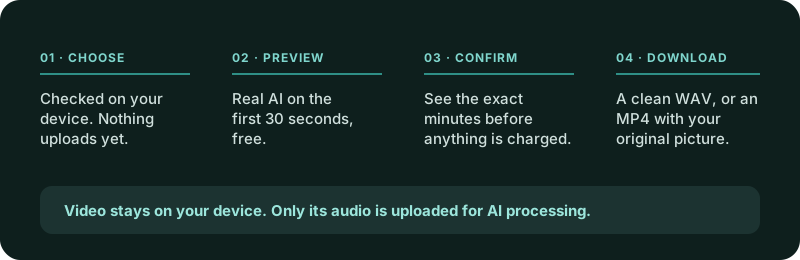
- Choose an MP3, WAV, M4A or AAC file up to 100 MB and 30 minutes.
- Listen to the free 30-second AI preview. The first preview needs no sign-up.
- If you like it, process the full file and download a clear WAV.
Uploaded audio is deleted within 24 hours at the latest. See the privacy policy for details, or go straight to the audio noise remover.
More guides
Why wind ruins phone audio, how to prevent it while filming, and how to reduce wind rumble in a finished video with an AI preview.
Read the guide Guide · 3 min readReduce steady fan and air-conditioner noise under speech, hear a free preview, and download a cleaner recording when the voice is still audible.
Read the guide Guide · 3 min readReduce steady microphone hiss, electrical hum and device noise under speech with a free 30-second preview before full processing.
Read the guide GuideWhy an iPhone video may be rejected by the noise remover, how to switch the camera to H.264, and how to convert clips you already recorded.
Read the guide